
How to Remove Anything From a Photo: Dust, People, Reflections, and Wires

Did you ever climb up to a rooftop, shoot through a window, and get an amazing photo, except for that one reflection? Or nail the composition and lighting, only to have it ruined by a crowd of people, sensor dust, or a tangle of cables in the sky? I used to consider photos like that unusable. Not anymore.
In this article I'm walking through the exact tools I use, in Lightroom and, when Lightroom isn't enough, in Photoshop, to remove dust, people, reflections, cars, cranes, and even wires from real, complicated photos. None of this is theoretical: every example below is a photo I actually shot and actually fixed, from the Golden Gate Bridge to Big Ben to Copenhagen.
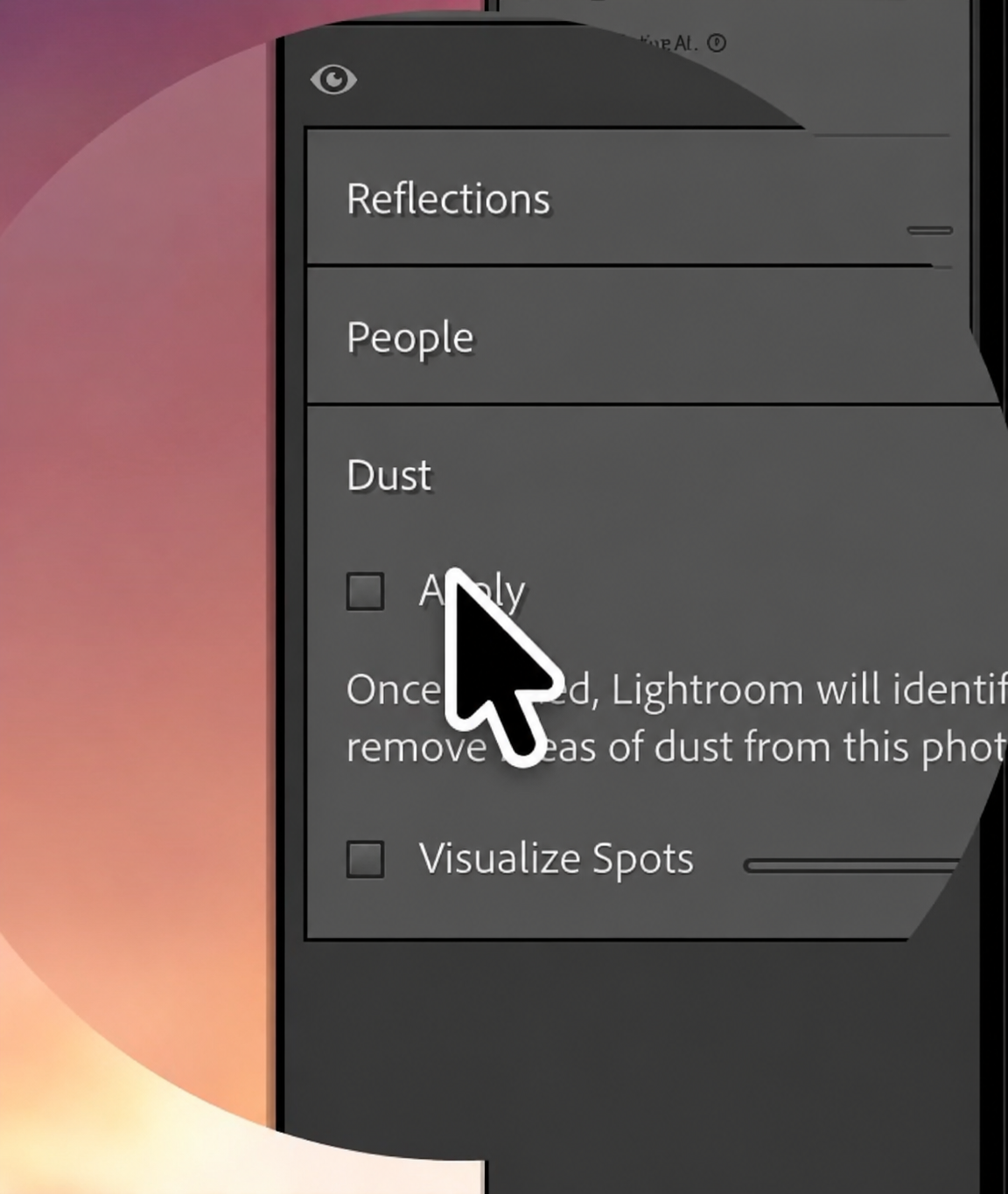
Remove Sensor Dust in Lightroom (One Click)
Start simple. This shot of the Golden Gate Bridge at blue hour was covered in dust spots. Go to the Dust tool and click Apply, and Lightroom will find and remove dust automatically, including spots you didn't even notice.
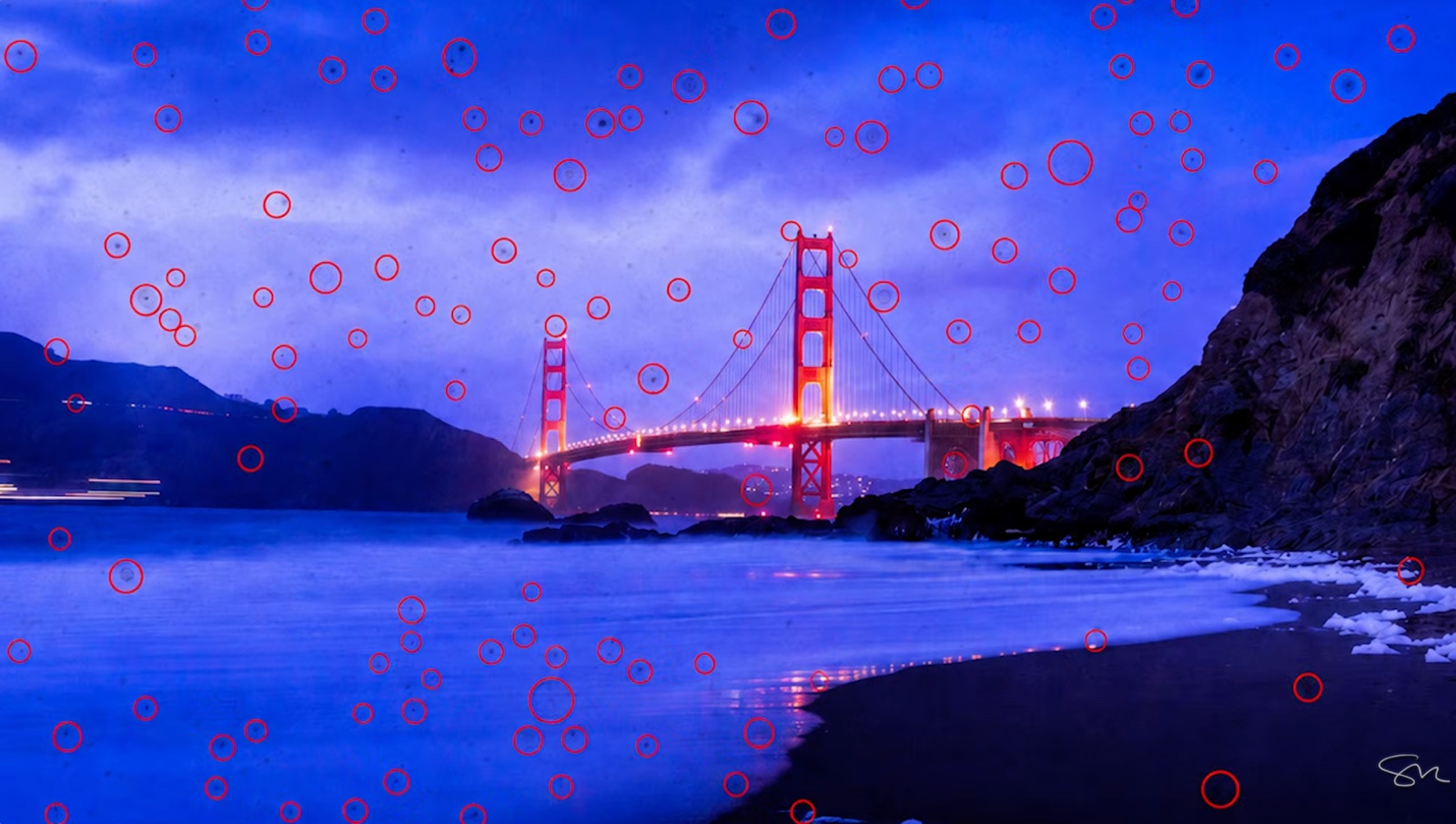
It won't always catch everything on the first pass. Click Visualize Spots to see every dust spot Lightroom detected, circled, so you can confirm nothing was missed. If a spot is too large for the automatic pass to fully clear, make the removal circle bigger and click directly on it to erase it manually.
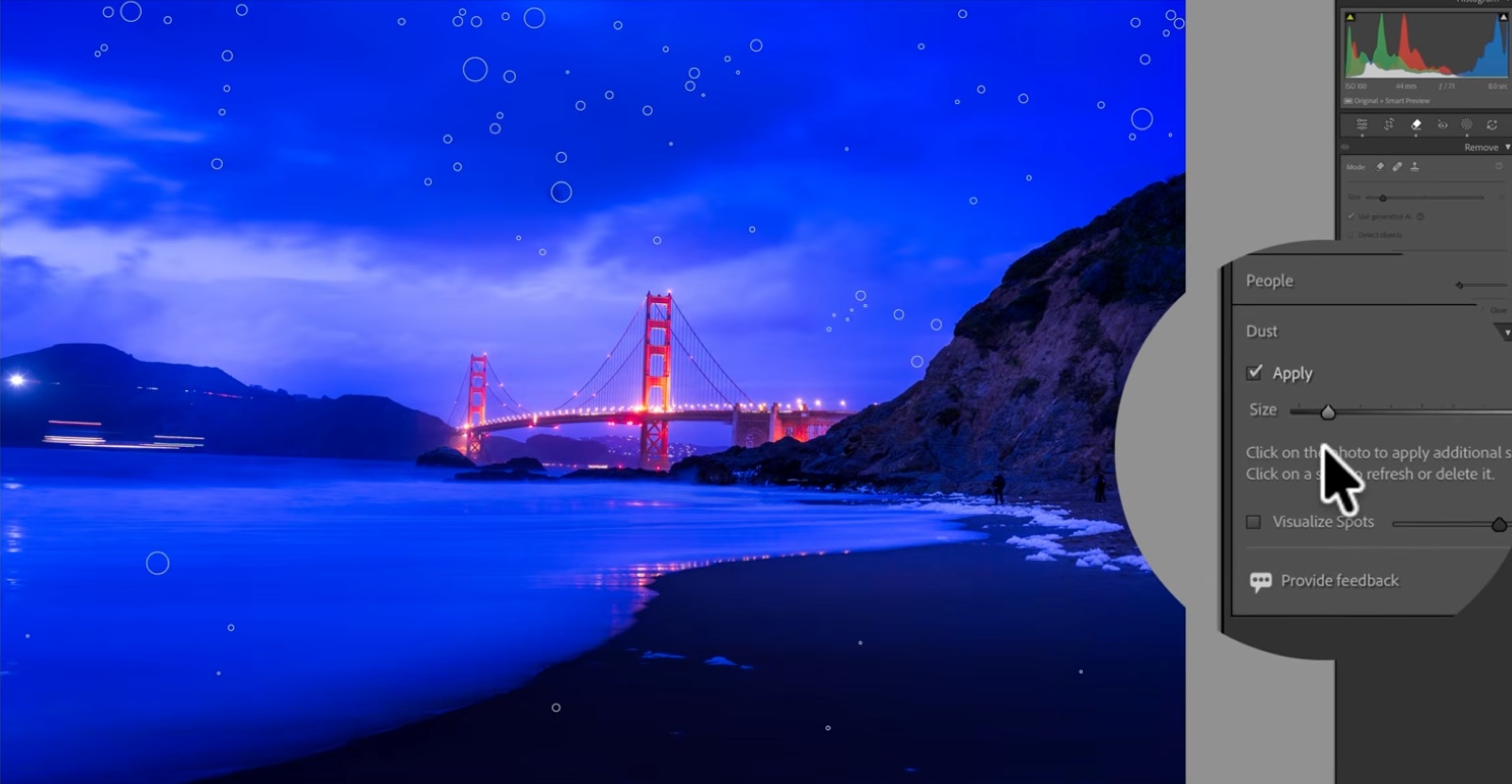
If you build your own presets, you can bake dust removal directly into them. I have dust removal built into several of mine (my free Lightroom presets include this), so applying a preset like "AI Night" runs dozens of retouching points, dust removal included, in a single click.
Remove People From a Crowded Photo
The same panel that handles dust also handles people. Click on People, and Lightroom will automatically detect every person in the frame and highlight them. Click Remove, and they're gone, along with the dust, in the same pass.
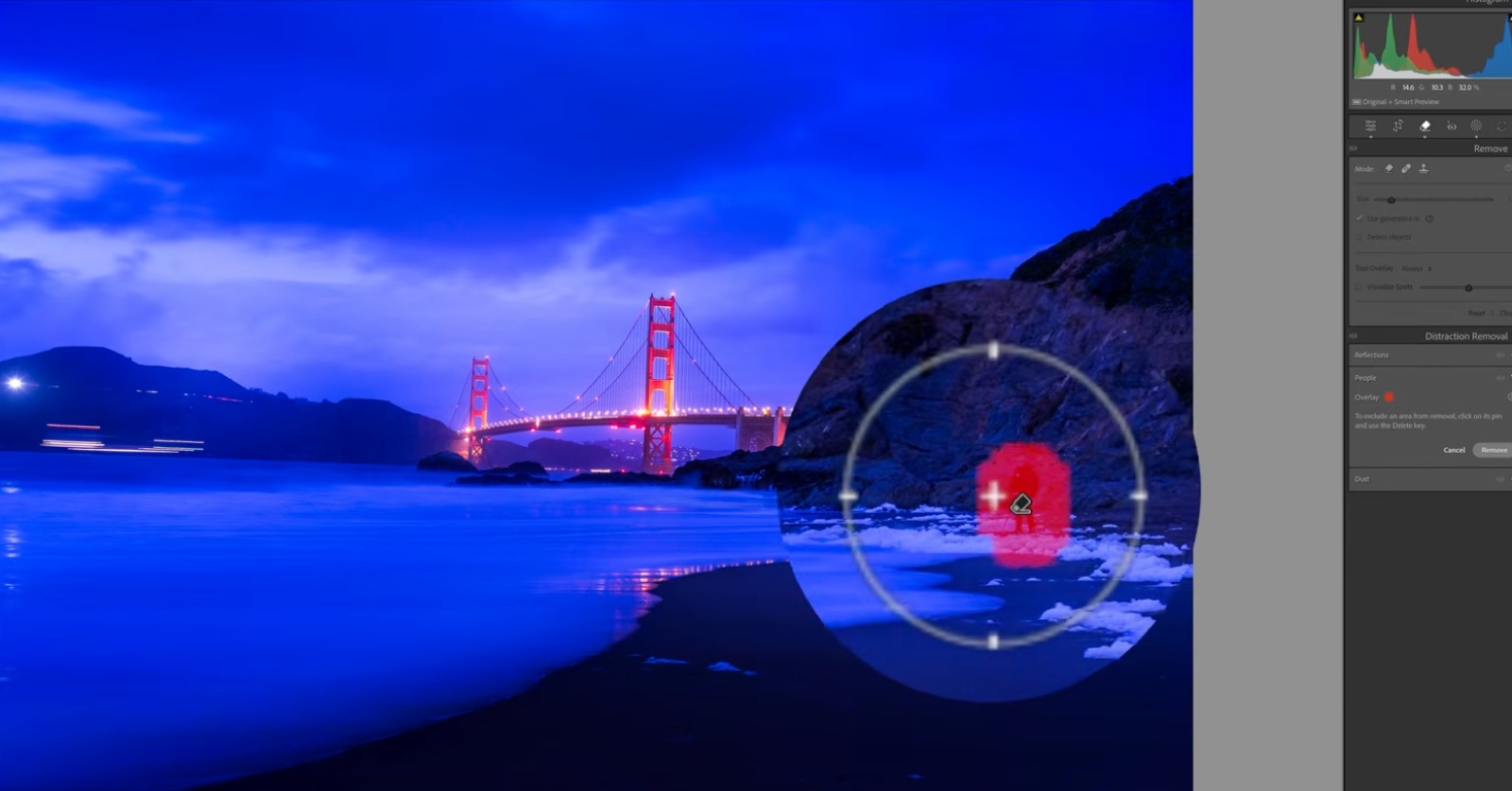
One important habit: after running an AI removal like this, check the mask thumbnail. If it's showing yellow, click Update. Skipping this step is how you end up with a faint ghosting effect where the tool didn't fully commit to the removal.
For anything left behind after the People tool runs, like a lamppost head, a crane, or a stray car, switch to the Generative Remove brush. Hold the space bar to pan around while zoomed in, brush over the object, and let it fill in the gap.
Remove Reflections From Windows
Shooting through glass almost always means fighting a reflection. This aerial view over London, shot from the Shard, had streaks running straight across the skyline. Lightroom has a dedicated tool for this: select Reflection, set the quality to Best (this is GPU-intensive, so it can take a moment depending on your computer), and click Apply.
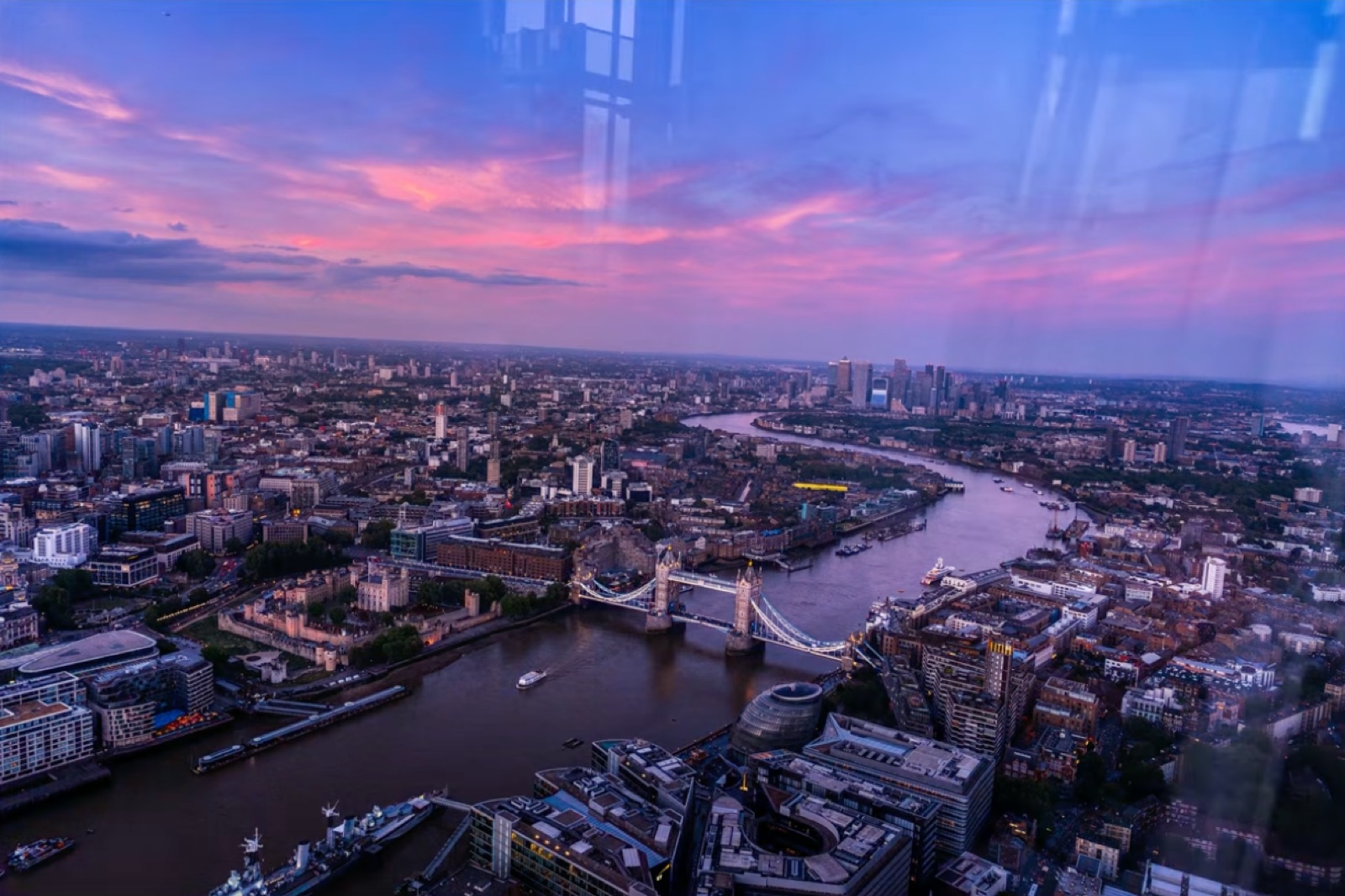
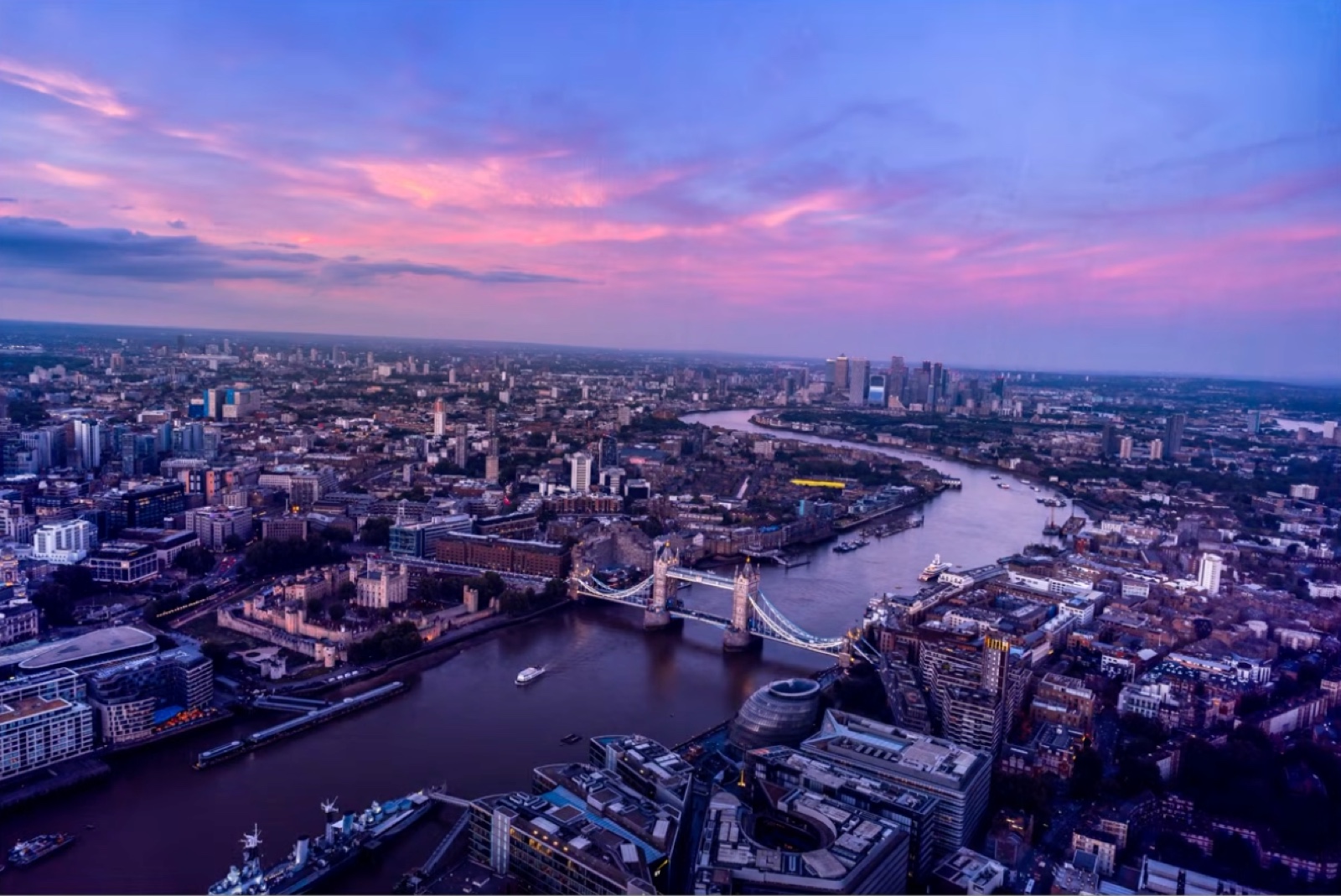
On a genuinely difficult reflection, you likely won't get a perfectly clean result on the first try, again, click Update to run a second, cleaner pass. Between the reflection removal and a contrast boost afterward, a shot that looked unusable turned into one of the strongest images in the set.
Cleaning Up a Crowded Cityscape
This is where these tools really pay off. At Big Ben and the Houses of Parliament, I had a frame full of tourists, cars, and a bus crossing the bridge, exactly the kind of shot that normally gets deleted.
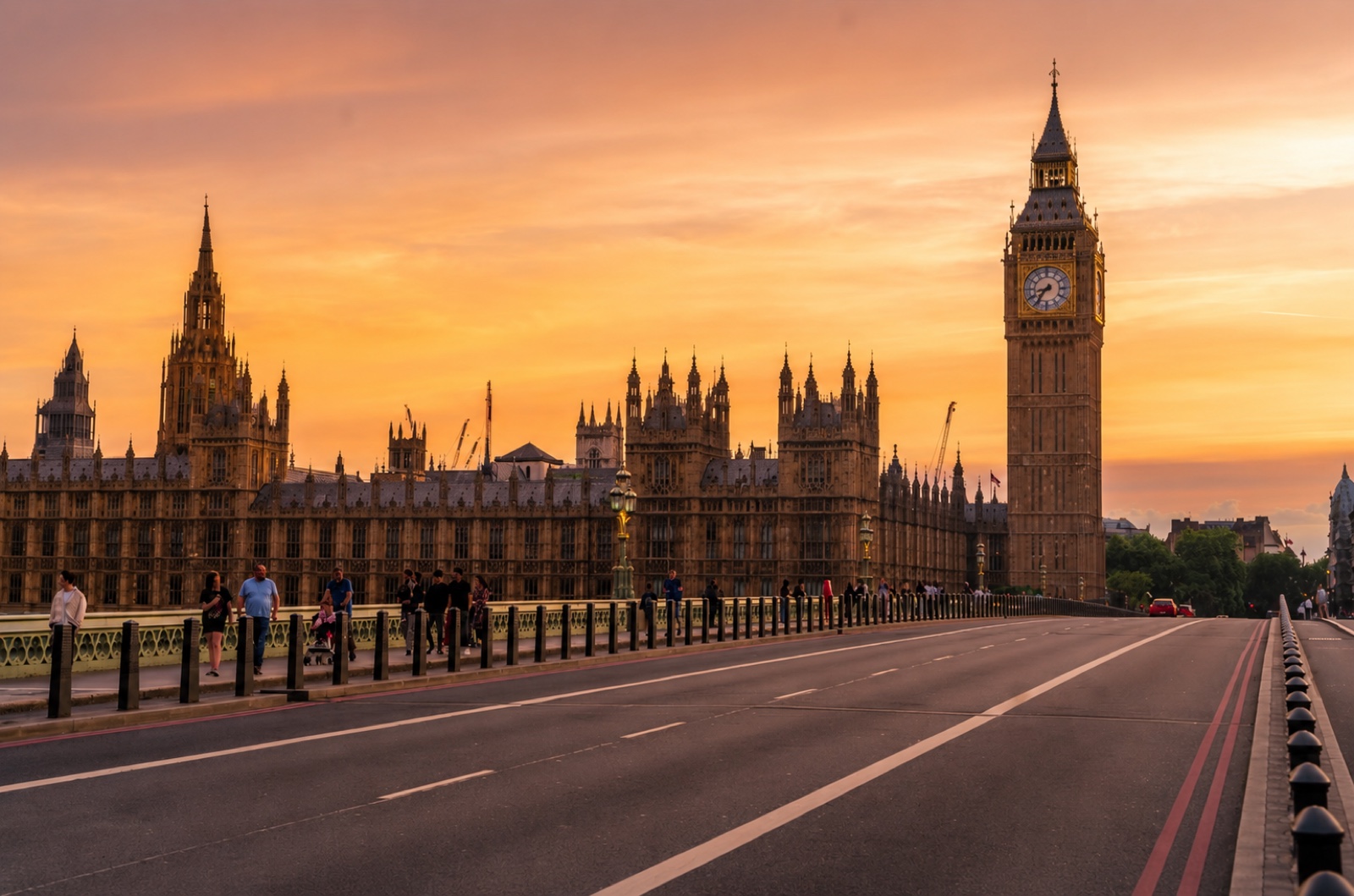
The People tool cleared almost everyone in a single click. Whatever was left, a crane, a parked car, a few stray heads, I cleaned up individually with the Generative Remove brush. On a busy scene like that, expect it to take a little longer to render; a maxed-out M3 Max with 128GB of RAM still needed close to a minute to process a heavily populated frame.
When Lightroom Isn't Enough: Removing Wires in Photoshop
Some problems don't have a Lightroom tool yet. Overhead cables and wires are the biggest one. Copenhagen's main square, in front of City Hall, is strung with tram cables and lamp wires everywhere you look. You can clean up the people and cars in Lightroom, but the wires need Photoshop.
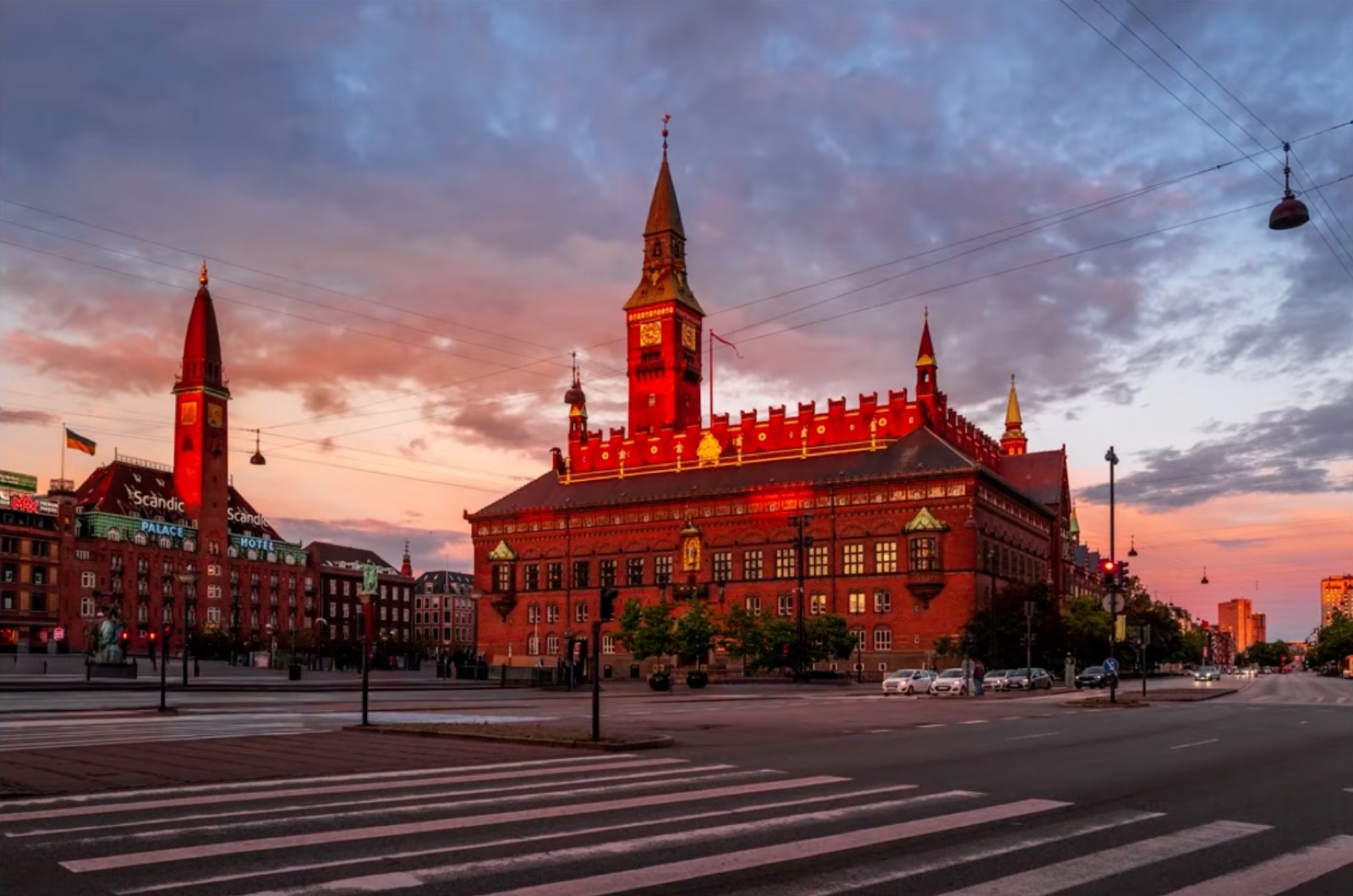
From Lightroom, go to Edit in Photoshop. Duplicate the layer (Cmd/Ctrl+J), select the Remove tool (keyboard shortcut J), and click Find Distraction. Photoshop scans the image specifically for wires and cables and removes them automatically. On this photo, with cables running through nearly the entire sky, this cleared them out completely.
The General Distraction Mode
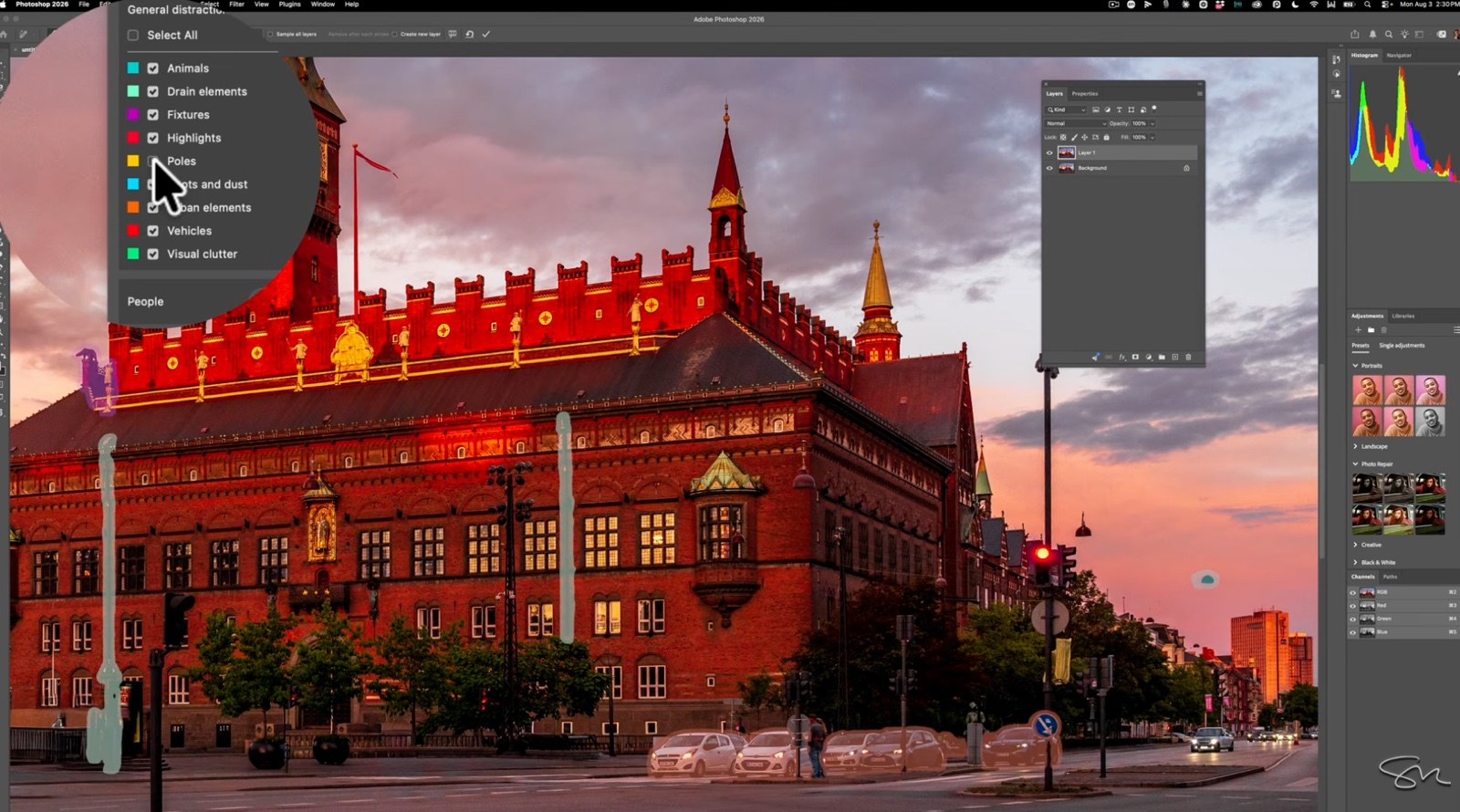
Go back to the Remove tool and choose General Distraction instead, and Photoshop's AI studies the whole photo for anything else worth removing. It groups what it finds by category and color: cars and other vehicles in red, poles in yellow, animals, spot and dust, and so on, and lets you toggle categories on or off before committing. That control matters. On this photo, I kept the lamps and drainpipes (they were part of the charm of the shot) but removed every car.
The automatic pass won't be perfect. Some cars got missed. For those, resize the Remove brush (hold Ctrl/Cmd + Option/Alt and drag), paint over what's left, and let it process.

Comparing the final image to where I started, dozens of distracting elements were gone, and the photo finally looked the way I remembered seeing it in person.
If you want to go deeper on AI masking specifically inside Lightroom, I cover the underlying technology in my guide to Lightroom's AI masking tools.
Real Results: From Hotel Manager to Award-Winning Photographer
I want to tell you about Ricardo Frassi. He spent 18 years as the general manager of a four-star hotel in Florence before falling in love with photography. I've coached him for two years, and he's become what I call "El Maestro", arguably the most awarded landscape and cityscape photographer in Italy right now.
If you have a mirrorless camera, you're based in the US, and you're serious about getting real feedback and real coaching, I'd like to see your four best photos. Spots are limited. Book a call with my team here.
Frequently Asked Questions
How do I remove dust from photos automatically in Lightroom?
Use Lightroom's Dust tool and click Apply, it detects and removes dust spots automatically, even ones you might not notice. Use Visualize Spots afterward to confirm nothing was missed, and manually enlarge the removal circle for any dust too large for the automatic pass.
Can Lightroom remove wires and cables from photos?
Not yet, this specific tool currently only exists in Photoshop. Use Edit in Photoshop, select the Remove tool, and click Find Distraction to detect and remove wires and cables automatically.
Why does AI object removal leave a ghosting effect?
This usually happens when you skip a step. After running an AI removal tool in Lightroom, check whether the mask thumbnail has turned yellow, if it has, click Update to force a cleaner, more complete pass.
