
Lightroom vs Lightroom Classic: Which One Should You Use? (2026)
By Serge Ramelli

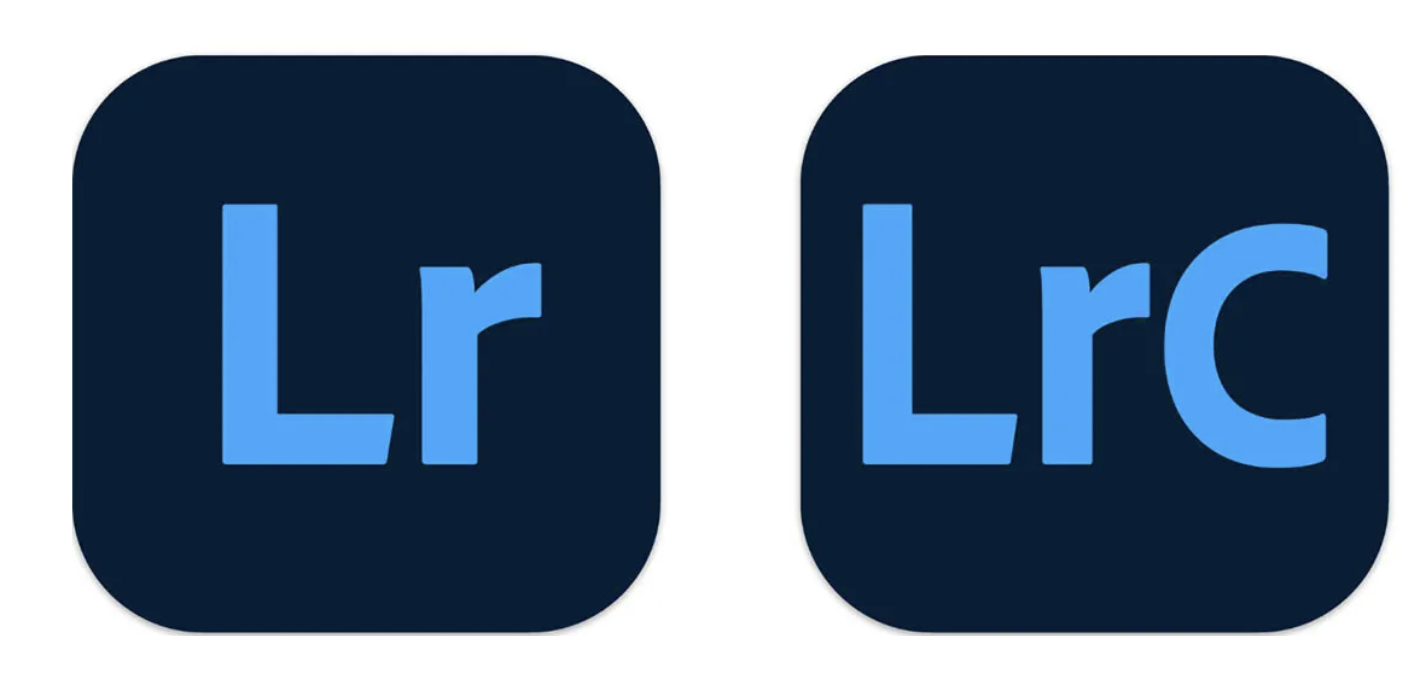
Hey everyone! If you just got a new camera, opened Adobe, and saw two programs called Lightroom and Lightroom Classic sitting right next to each other — don't worry. You're not crazy, and you're not the only one. This is one of the most common questions I get asked, right after "where do I shoot in Paris?"
So in this article I'm going to clear up the whole Lightroom vs Lightroom Classic confusion once and for all. I'll show you the real difference (it's simpler than people make it sound), tell you exactly which one I use and why, and help you pick the right one for you — whether you're a total beginner or you've got 50,000 photos on your hard drive.
By the way, my name is Serge. I'm a French photographer living between Paris and the USA. I've had my work in over 120 galleries, I was the official photographer of the city of Las Vegas, and I've published eight coffee table books. Enough bragging — I've been editing photos professionally for more than 15 years, and I've used both of these programs every single week. So let me save you a lot of headache.
The short answer (if you're in a hurry)
Let me give it to you straight, because I know some of you just want the answer.
For most serious photographers — landscape, cityscape, travel, anyone who keeps their photos on a computer — use Lightroom Classic. It's the one I use. It's the professional standard, it has the most powerful tools, and it's built to manage thousands of photos on your own hard drive.
Use the new Lightroom (the cloud one) if you mostly shoot on your phone, you edit on the couch on an iPad, you don't have that many photos, and you want everything to magically sync to every device with zero thinking.
That's it. That's the whole debate in three sentences. But stick with me, because which one is right depends a little on how you work, and I want you to get this right.
Ready to get 1 on 1 support to master your tools and take photos that have that WOW factor? Apply to become a certified Master of Photography here.
So why are there two Lightrooms anyway?
Okay, here's the story. Years ago there was just one Lightroom — the program photographers had used forever. Then Adobe built a brand new, modern, cloud-based version and gave it the simple name "Lightroom." To avoid confusion (ha!), they renamed the original one Lightroom Classic.
So today you have:
Lightroom Classic — the original. The powerhouse. Desktop only (Mac and Windows). Your photos live on your hard drive, in folders, exactly where you put them.
Lightroom (sometimes people still call it "Lightroom CC") — the new one. Cloud-first. Works on your computer, your phone, your tablet, even in a web browser. Your photos sync everywhere automatically.
Same company. Same editing engine under the hood, mostly. Very different philosophy. Let me show you what that actually means for you.
The real difference: where your photos live
This is the heart of the whole thing. else for a second. The number one difference between Lightroom and Lightroom Classic is where your photos are stored.
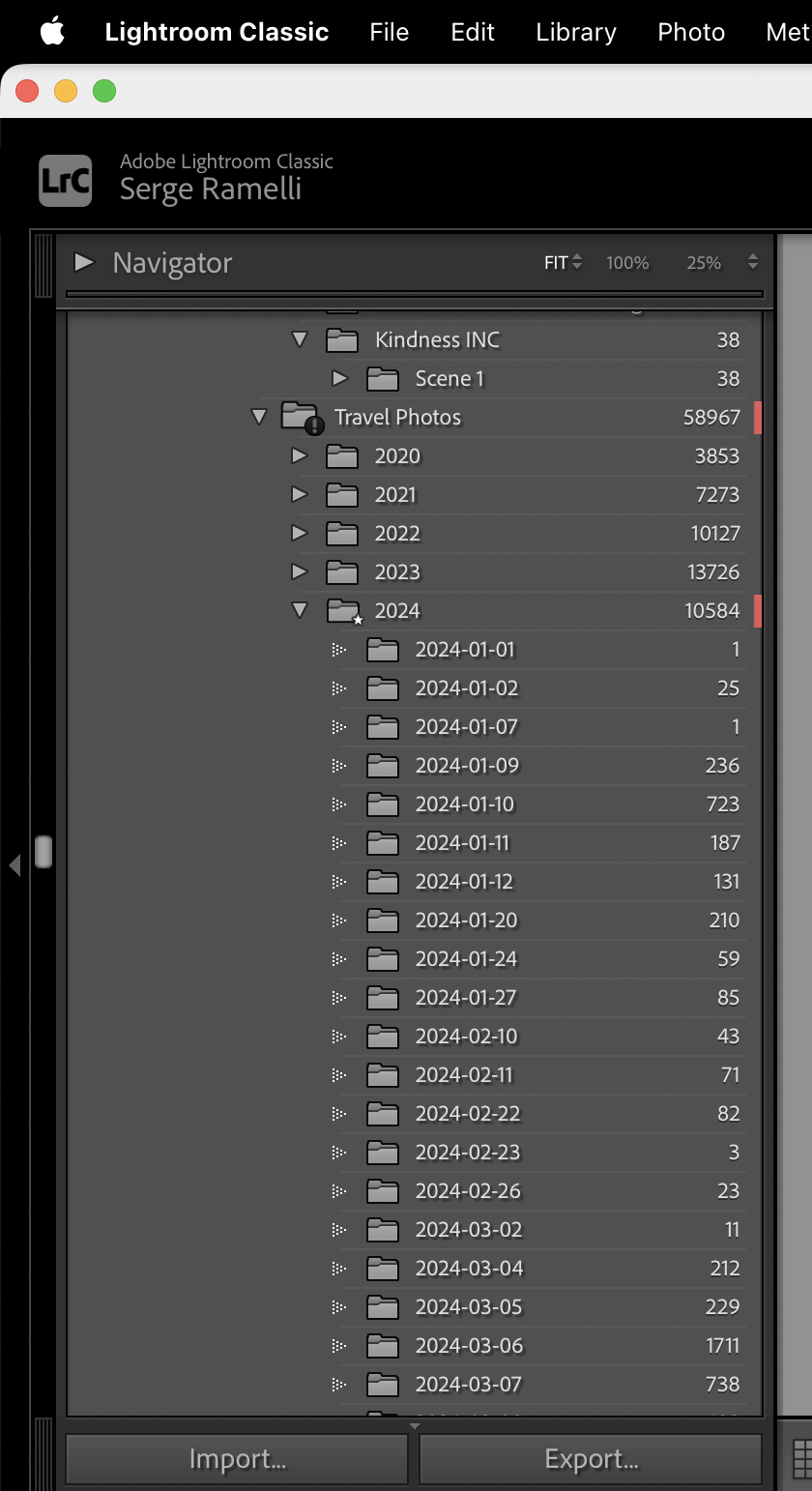
With Lightroom Classic, your photos stay on your computer or your external hard drive. You're in control. You see the folders. You decide where everything goes. If you've got 80,000 photos from 20 years of shooting — like a lot of my students — this is the only sane way to handle them.
With Lightroom (cloud), the idea is that your photos get uploaded to Adobe's cloud, and then they appear on all your devices automatically. Edit on your laptop, walk away, pick up your phone — it's all there. It's beautiful when it works. But your whole library lives online, which means you're paying for cloud storage, and you need a good internet connection.
I want to clear up one outdated myth here: people will tell you "Classic is desktop-only and Lightroom is cloud-only." That's not really true anymore. Lightroom now lets you keep photos locally too, and Classic can sync some photos up to the cloud so you can see them on your phone. So it's not as black-and-white as the internet makes it sound. But the philosophy of each program is still very different, and that's what matters when you choose.
Lightroom Classic — who it's for
This is my daily workhorse. Here's why I love it and who should use it.
Ready to get 1 on 1 support to master your tools and take photos that have that WOW factor? Apply to become a certified Master of Photography here.
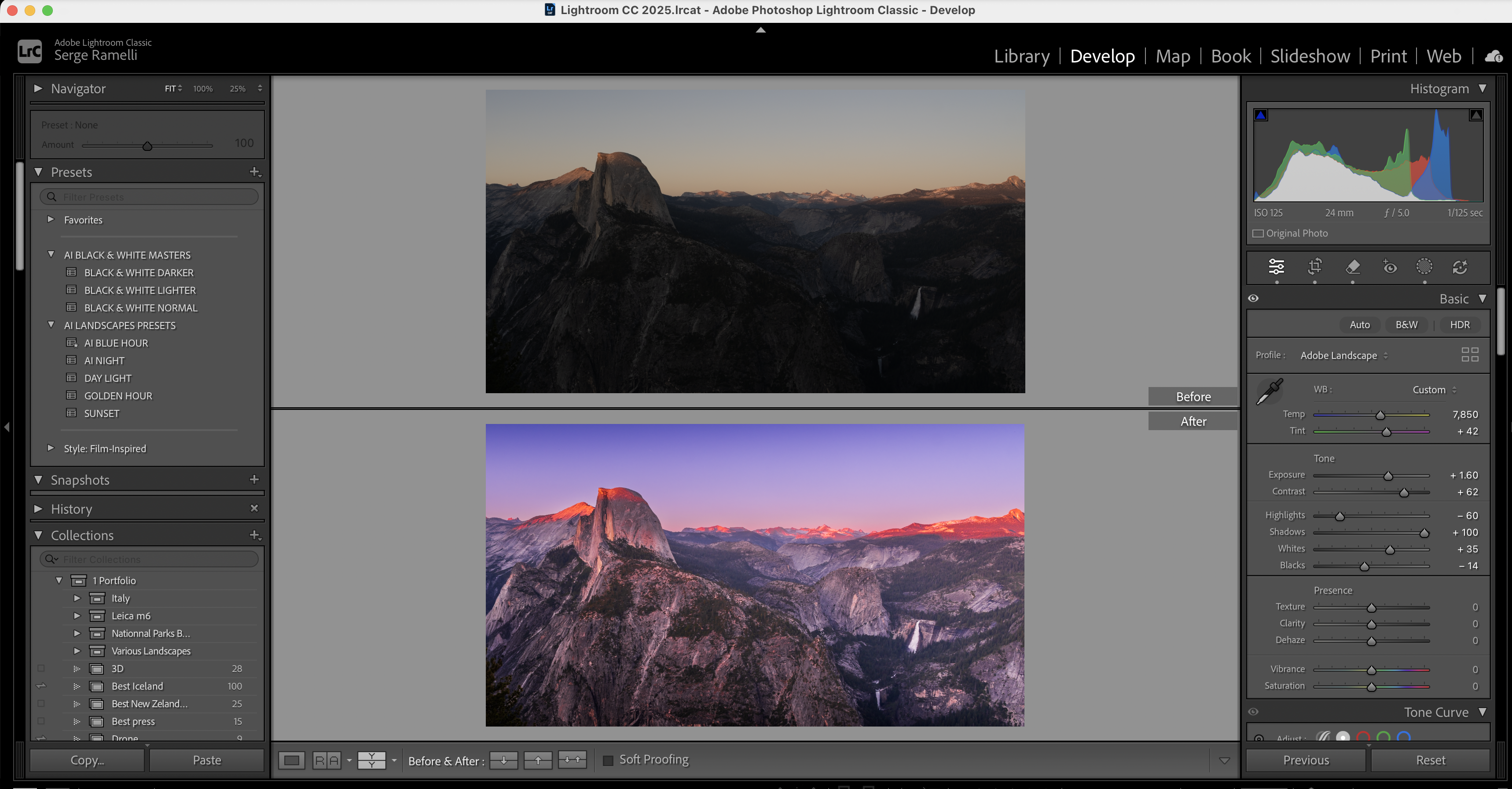
Lightroom Classic gives you the most control and the most powerful features. The cataloging and file management is far better — when you're dealing with thousands of RAW files, folders, keywords, and collections, nothing beats it. It has tools the cloud version still doesn't, like proper tethered shooting (where your camera connects to the computer and you see the photo pop up instantly as you shoot — I use this all the time in the studio and on jobs), a real compare view, and the deepest set of editing and masking tools.

If you shoot landscape, cityscape, real estate, weddings, or anything serious where you bring home a memory card full of RAW files and sit down at a computer to edit — Lightroom Classic is your tool. Full stop.
The trade-off? You manage more. You're responsible for your own backups and your own folder organization. It asks a bit more of you. But in exchange it gives you total control, and for a serious photographer, that control is everything.
Lightroom (the cloud version) — who it's for
Now don't get me wrong — the new Lightroom is a genuinely great program, and for the right person it's actually the better choice.
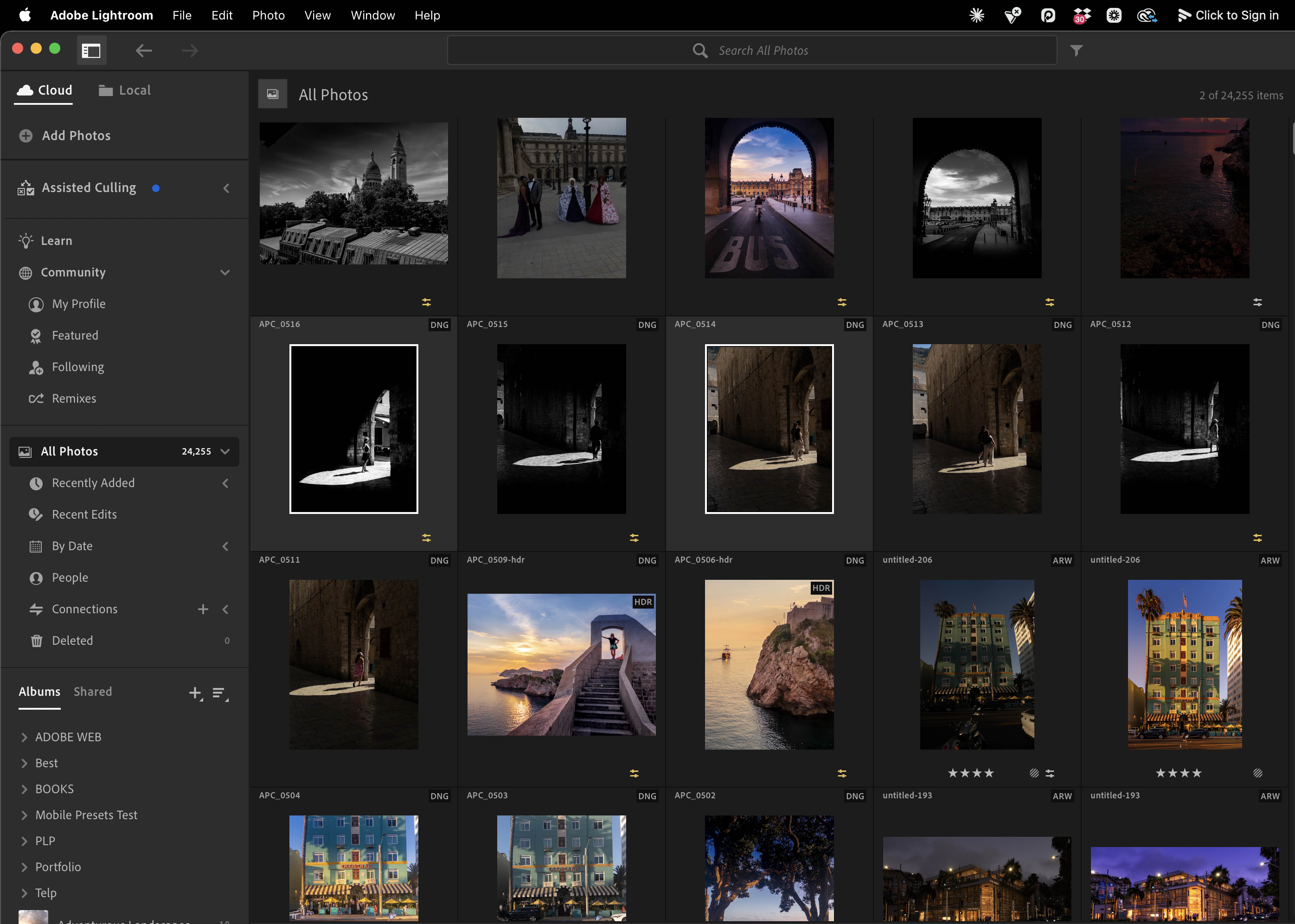
It's built around simplicity and freedom from your desk. It works on everything — desktop, iPhone, iPad, Android, ChromeOS, and even in your web browser. You edit a photo on one device and it's instantly updated everywhere. The interface is cleaner and less intimidating, which honestly is perfect if you're brand new and Classic feels like the cockpit of a 747.
So use Lightroom if you mostly shoot on your phone, you love editing on a tablet on the couch, you travel light, you don't have a giant photo library, and you want the whole thing to just work without you thinking about folders and backups.
The trade-off is less control, fewer pro features, and you're leaning on cloud storage — which means a monthly cost for space and a dependence on your internet.
Ready to get 1 on 1 support to master your tools and take photos that have that WOW factor? Apply to become a certified Master of Photography here.
Lightroom vs Lightroom Classic: side by side
Here's the whole thing at a glance:
| Lightroom Classic | Lightroom (cloud) | |
|---|---|---|
| Best for | Serious / pro photographers | Mobile-first, casual, on-the-go |
| Where photos live | Your computer / hard drive | Adobe cloud (synced everywhere) |
| Devices | Desktop only (Mac / Windows) | Desktop, phone, tablet, web |
| File management | Powerful — folders, catalogs, keywords | Simple — automatic, less control |
| Pro features | Tethering, compare view, full toolset | Fewer, but growing fast |
| Learning curve | Steeper | Easy and clean |
| You manage backups? | Yes | No (Adobe stores them) |
| Needs internet? | No | Yes, really |
Do they cost more? (The good news)
Here's something a lot of people don't realize, and it takes the pressure off the whole decision: you usually don't have to choose to pay more.
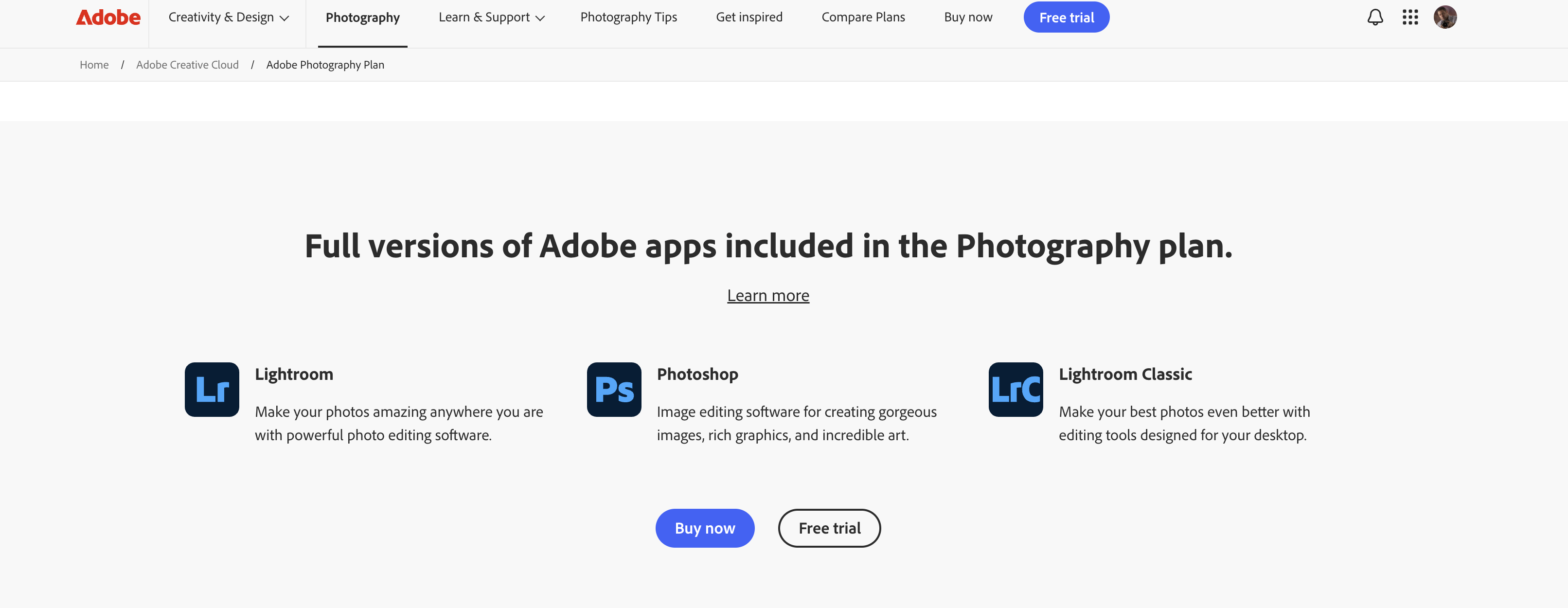
Adobe's Photography Plan includes Lightroom Classic, the new Lightroom, and Photoshop — all in one subscription. So you can install both, try both, and use whichever one fits the photo you're working on. There's also a Lightroom-only plan that comes with more cloud storage if you go all-in on the cloud workflow.
Prices and storage tiers change and vary by country, so check Adobe's current plans before you buy. But the key point is this: for the same money, most plans give you both programs. So don't stress about picking "wrong." You can run them side by side.
So which one should YOU use?
Let me make this dead simple. Find yourself below:
"I shoot landscapes / cityscapes / travel with a real camera and edit on my computer."
→ Lightroom Classic. This is you. This is what I use. Go.
"I mostly shoot on my phone and want to edit anywhere with zero hassle."
→ Lightroom (cloud). It'll make you happy.
"I'm a total beginner and Classic looks scary."
→ Start with Lightroom (cloud) to build confidence — but know that as you get serious, you'll probably graduate to Classic. That's a good thing.
"I have tens of thousands of photos and I'm picky about organization."
→ Lightroom Classic, 100%. The cloud version will fight you.
"I want the best of both."
→ Use Classic as your main editing home, and turn on syncing so your favorite photos show up on your phone too. That's a very common pro setup.
My honest recommendation
After 15 years of doing this professionally, here's the truth: I use Lightroom Classic, and if you're serious about your photography, you probably will too. The control, the file management, and the depth of the editing tools are just on another level when you're working with real RAW files and big libraries.
Ready to get 1 on 1 support to master your tools and take photos that have that WOW factor? Apply to become a certified Master of Photography here.
But I'm not going to be a snob about it. The new Lightroom is fantastic, and for a lot of people — especially beginners and phone shooters — it's genuinely the smarter, simpler choice. There's no shame in it. The best program is the one that gets you editing your photos instead of fighting your software.
And remember what I always tell my students: the software doesn't make the photo — you do. You don't take a photo, you make a photo. Lightroom is just where you finish telling the story. Pick the one that fits how you work, then go spend your energy on light, composition, and editing — that's where the magic actually happens.
Frequently asked questions
Is Lightroom Classic being discontinued?
No. Adobe still actively develops and updates Lightroom Classic. It's the professional standard and it's not going anywhere anytime soon.
Can I switch from Lightroom to Lightroom Classic later?
Yes. You can migrate your photos between them. It's easier to start in the cloud version and move to Classic than people think, so don't let fear of "picking wrong" freeze you.
Are my edits and presets the same in both?
The editing tools are nearly identical, and your presets work across both. Classic just has a few extra pro features and far stronger file management.
Do I need both?
No, but you can have both — most plans include both for the same price. Many pros use Classic to edit and the cloud version just to view photos on their phone.
Which is better for beginners?
The new Lightroom is friendlier and cleaner to start with. But if you already know you're serious about landscape or cityscape photography, learning Classic from day one will pay off.
Want me to look at your photos?
If you're ready to stop guessing and start making truly stunning images, I'd love to see your work. My team and I help photographers go from "I have a nice camera but my photos look flat" to award-winning — students like JT who landed 38 international awards, or Sherry King with 12 magazine covers, all after going through my program.
Book a call with my team and bring your four best photos. Let's talk about where you want to take your photography. 👉 Apply / Book a Call
And if this cleared things up for you, make sure you subscribe to my YouTube channel — I put out new editing tutorials every week.
