
How to Create a Selective Black and White Photo in Lightroom
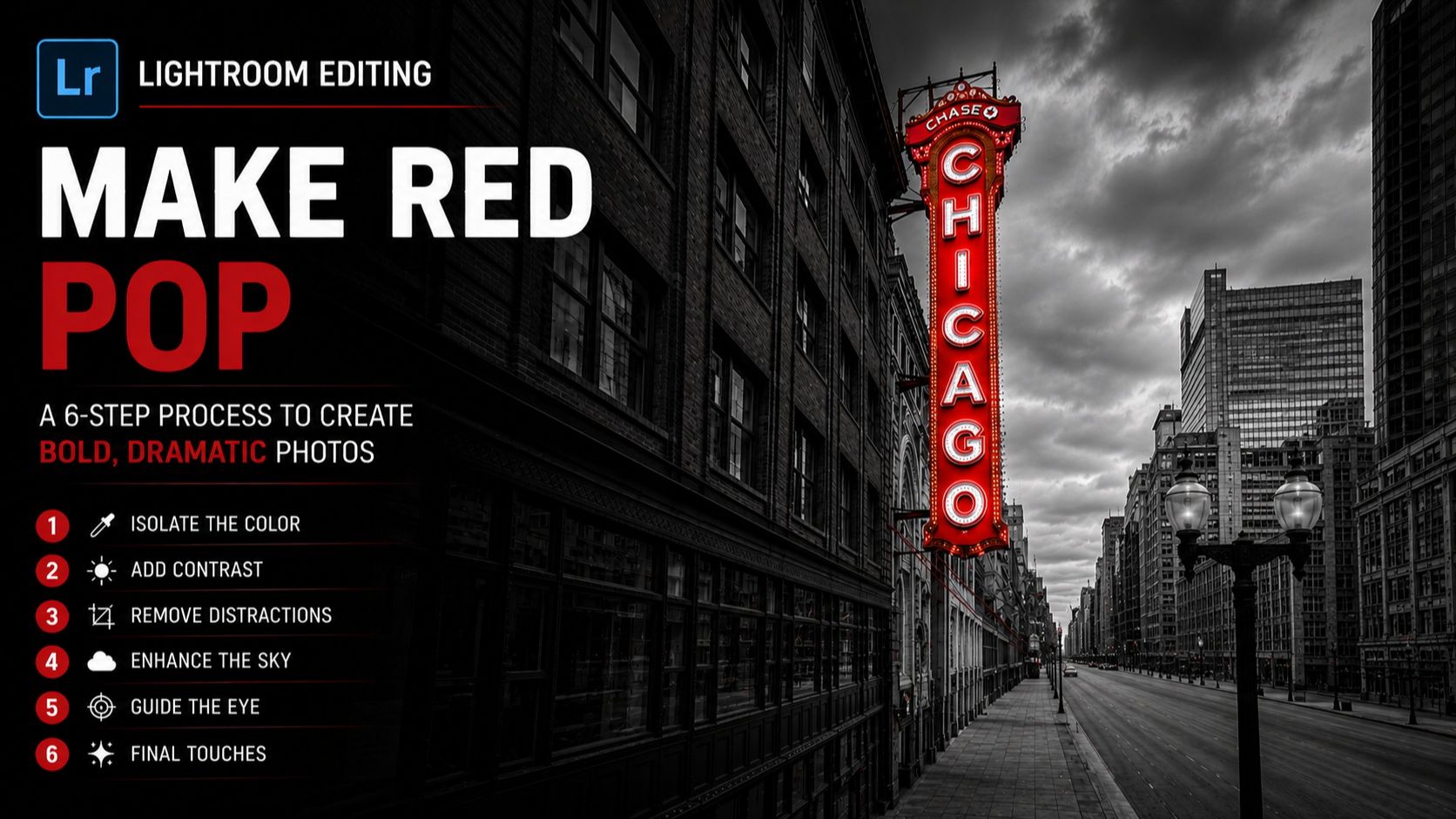
How to Create a Selective Color Photo in Lightroom (Black & White With One Color Pop)
By Serge Ramelli
Want to make your subject stand out instantly?
Selective color — keeping one color while the rest of the photo turns black and white — does exactly that. In this Lightroom tutorial you'll learn how to isolate a single color, build dramatic contrast, and guide the viewer's eye, step by step.
Why Selective Color Works
Our eyes naturally follow color. When only one color remains in a black and white photo, it becomes impossible to ignore. That's why selective color is such an effective technique for simplifying a scene and creating stronger, more impactful images.
Ready to get 1 on 1 support to master your tools and take photos that have that WOW factor? Apply to become a certified Master of Photography here.
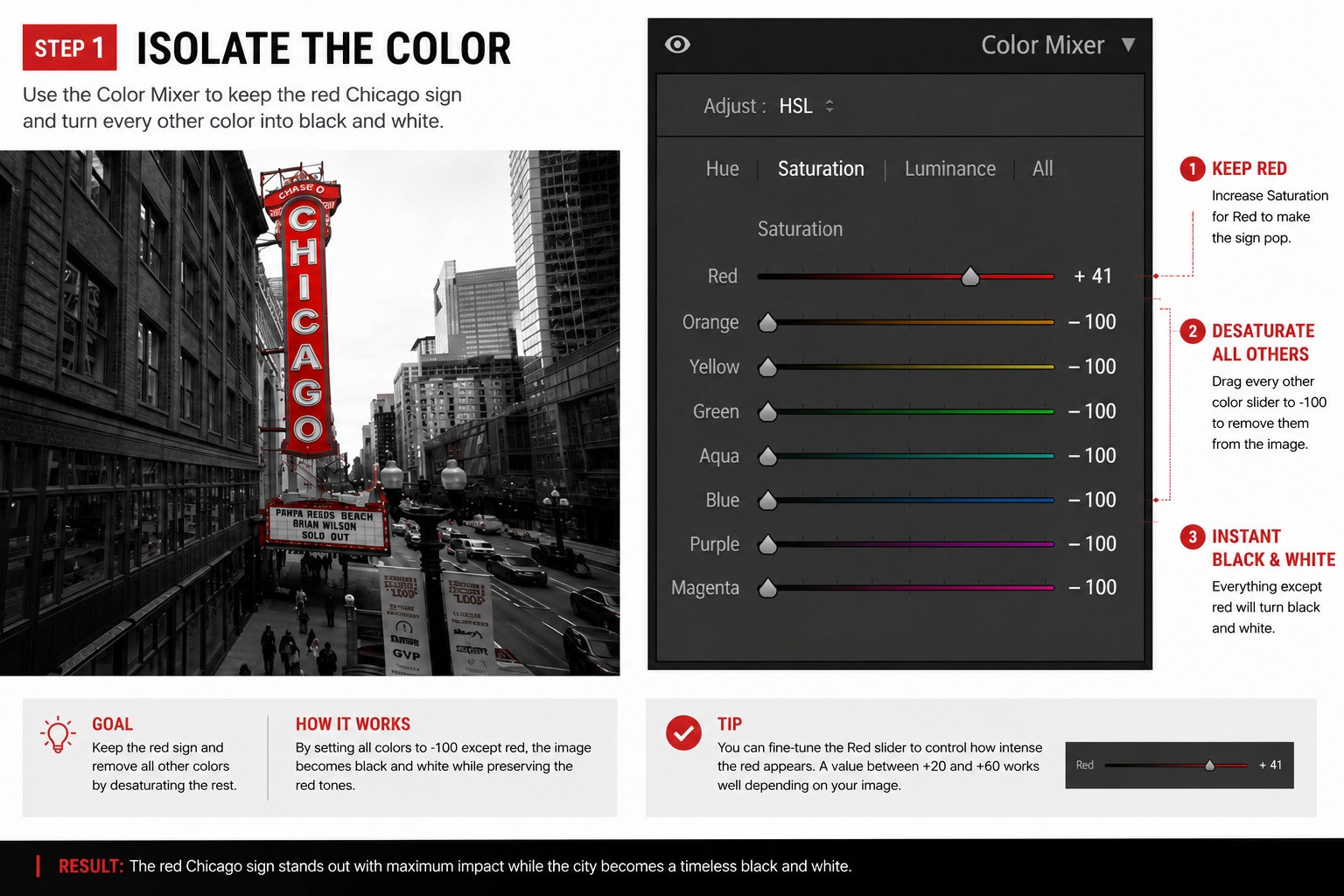
Step 1: Isolate One Color With the Lightroom Color Mixer
Start by opening the Color Mixer panel in Lightroom. Use the Targeted Adjustment Tool to select the dominant color, increase its saturation slightly, then reduce the saturation of every other color.
The goal is simple: keep one color and turn everything else into black and white. This works best with a strong element such as a red sign, a colorful car, or bright clothing.
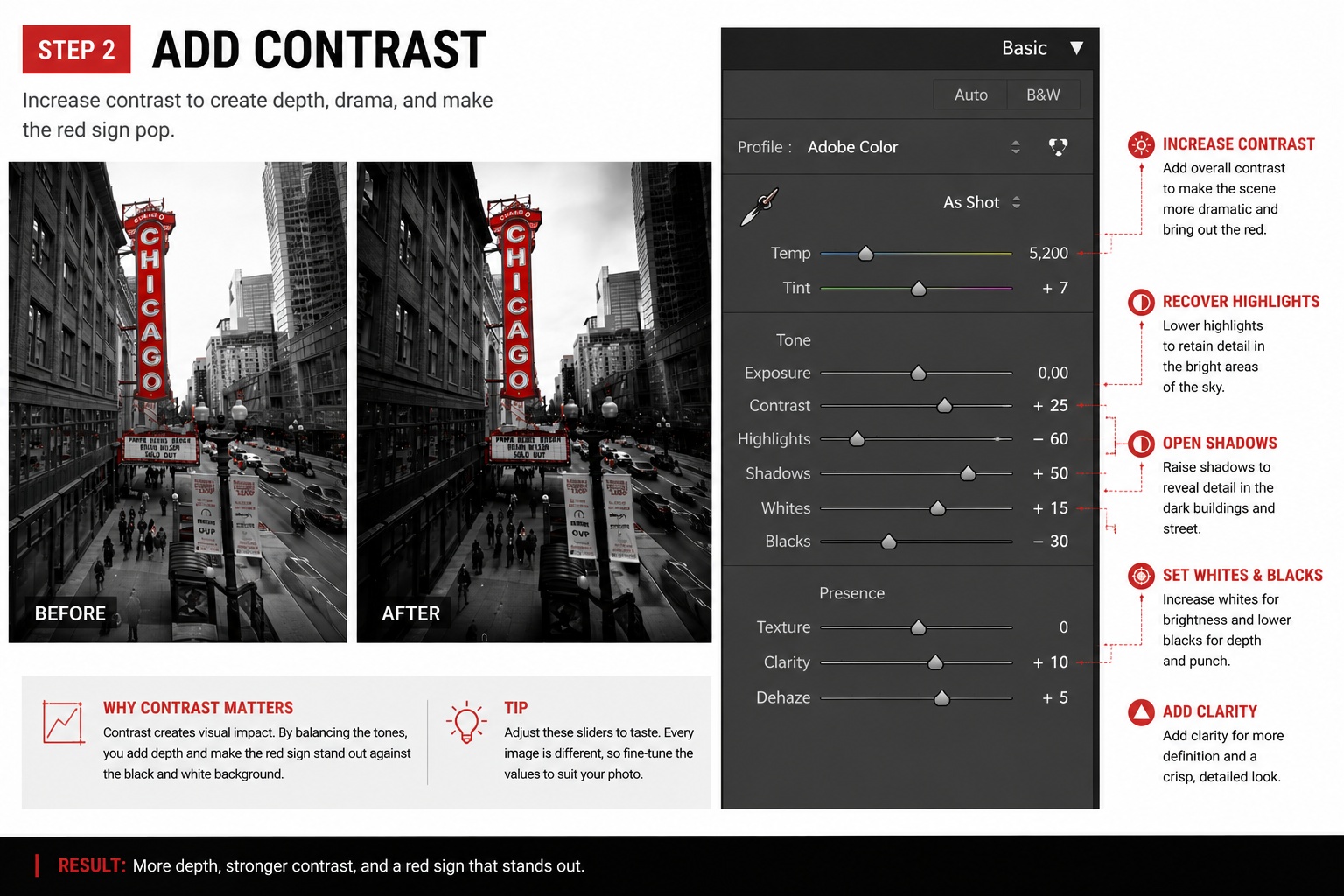
Step 2: Add Contrast and Recover Detail
To create a dramatic black and white look:
- Raise the Shadows
- Lower the Highlights
- Deepen the Blacks
- Adjust the Whites
These adjustments recover detail from the RAW file while adding depth. A strong selective color effect almost always relies on strong contrast.
Ready to get 1 on 1 support to master your tools and take photos that have that WOW factor? Apply to become a certified Master of Photography here.
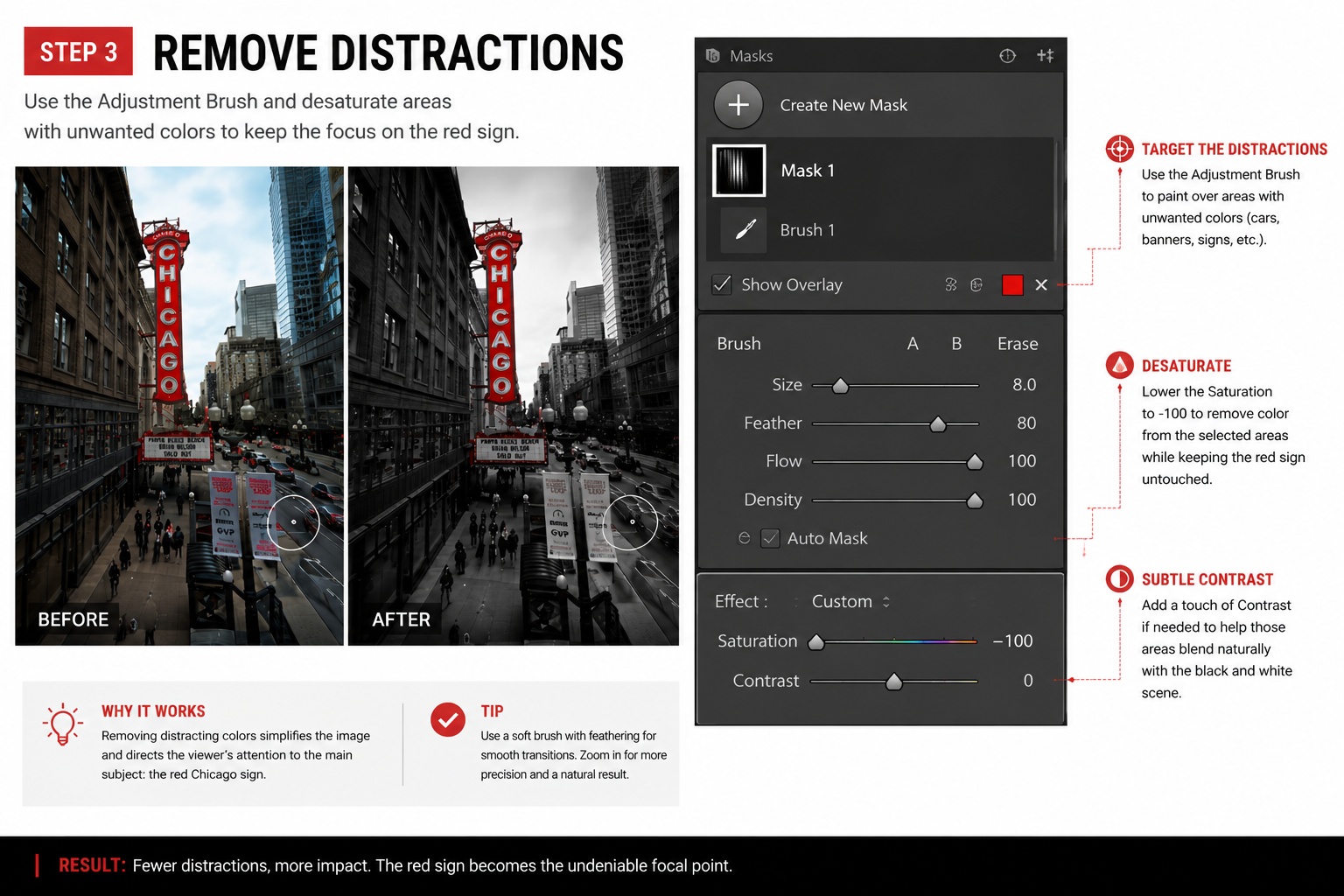
Step 3: Clean Up Leftover Color With a Masking Brush
Even after desaturating, some color may remain in small areas. Use a local Masking brush and reduce its saturation to remove any distracting colors competing with your subject. The cleaner the image, the stronger the visual impact.
Ready to get 1 on 1 support to master your tools and take photos that have that WOW factor? Apply to become a certified Master of Photography here.
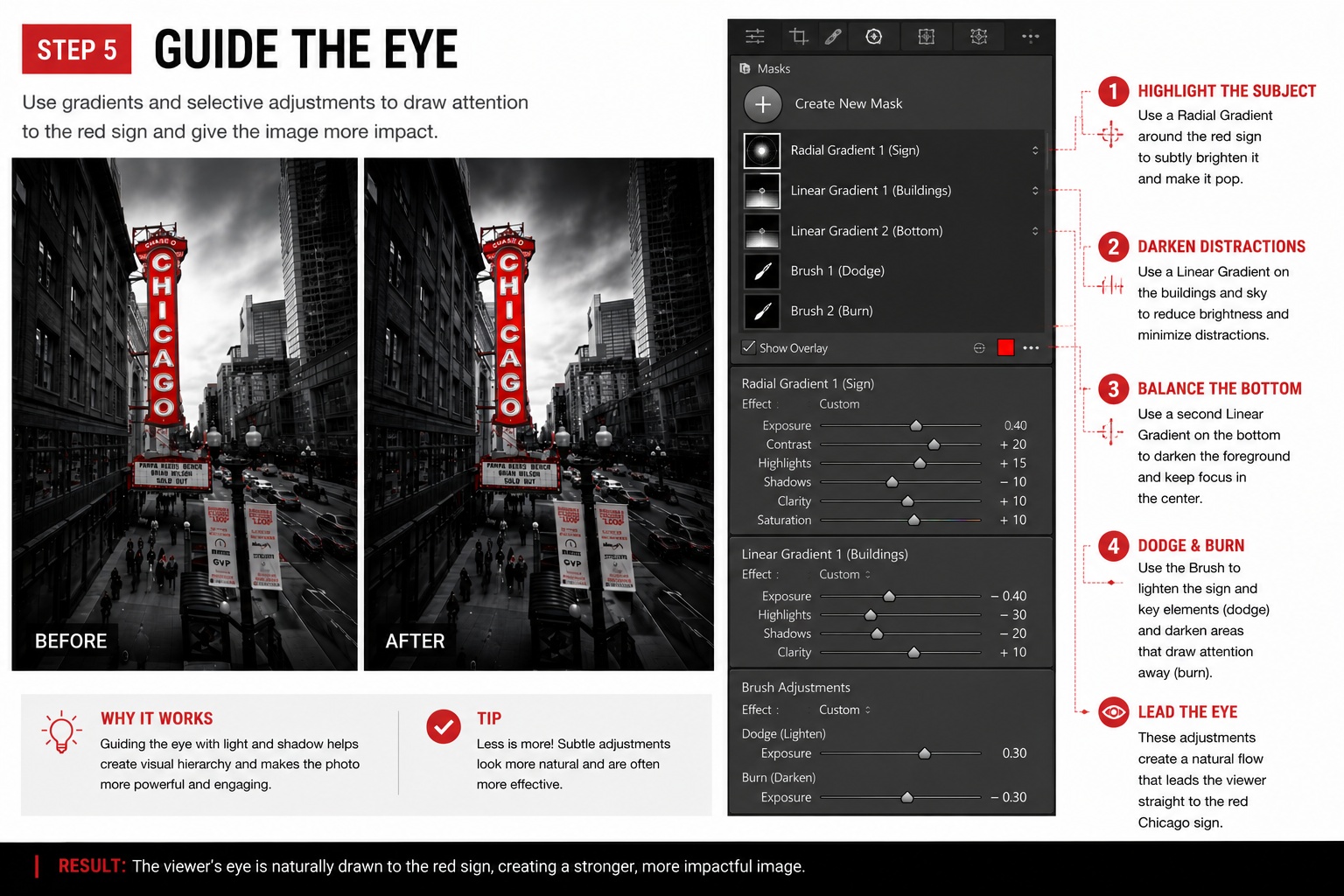
Step 4: Guide the Viewer's Eye
Professional photographers don't just edit photos—they control where viewers look. Use gradients and local brushes to:
- Darken distracting areas
- Brighten important details
- Create depth throughout the frame
These subtle adjustments naturally lead the viewer toward the subject.
Ready to get 1 on 1 support to master your tools and take photos that have that WOW factor? Apply to become a certified Master of Photography here.
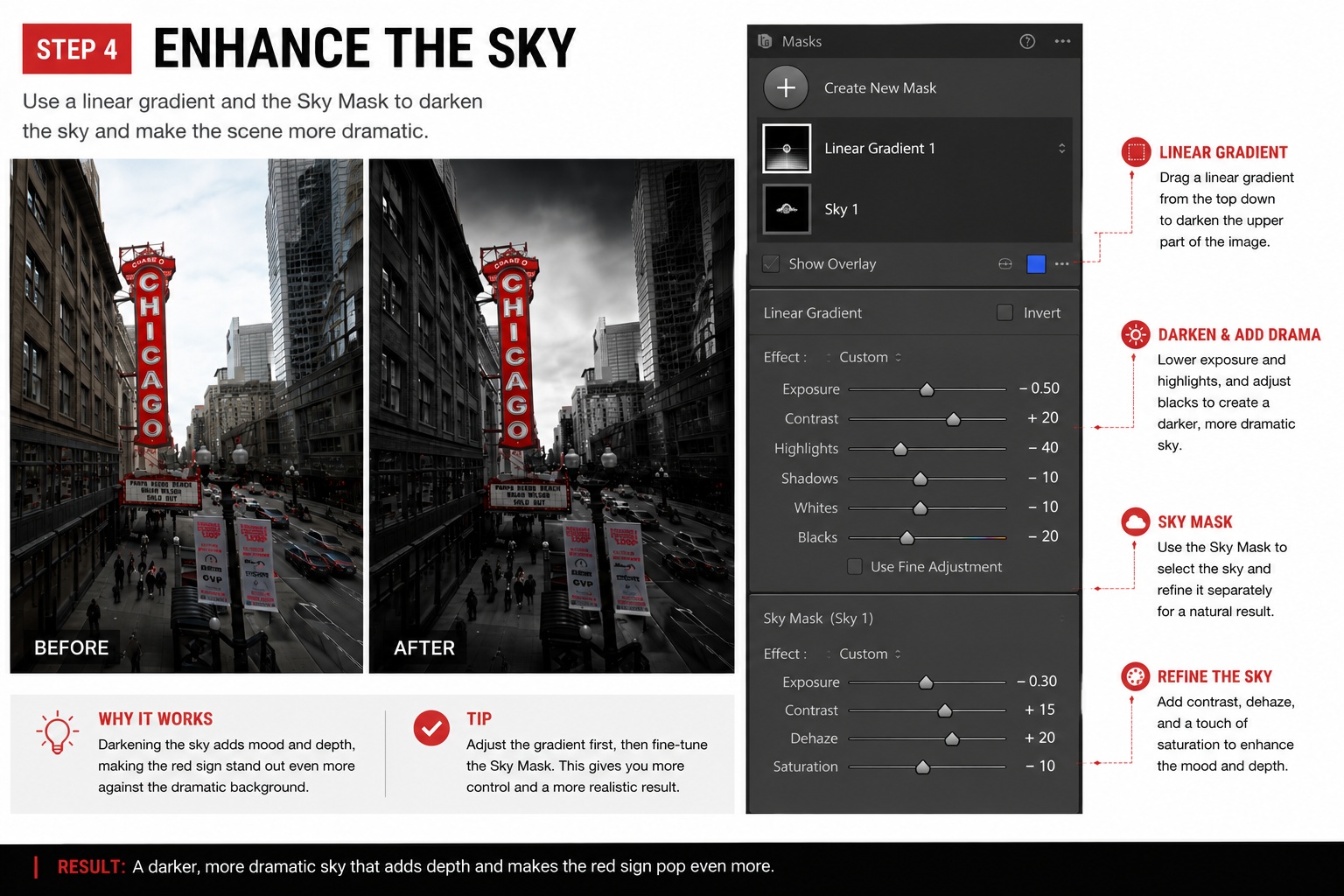
Step 5: Enhance the Sky With Lightroom's AI Mask
A dramatic sky makes a huge difference. Apply a linear gradient to darken the sky, then use Lightroom's AI Sky Mask to limit the adjustment to the sky only — adding mood and contrast without affecting buildings or other elements.
Ready to get 1 on 1 support to master your tools and take photos that have that WOW factor? Apply to become a certified Master of Photography here.
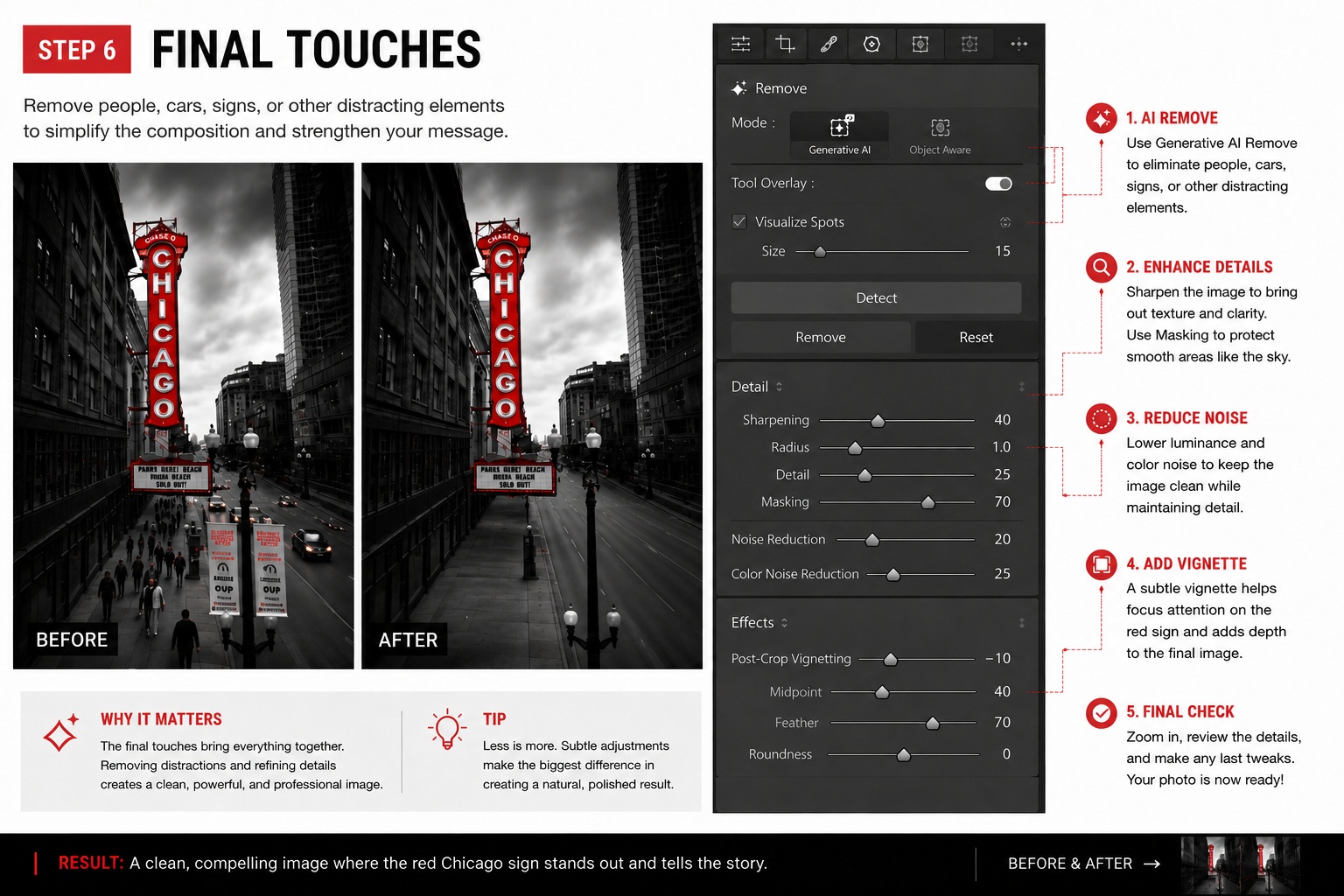
Step 6: Remove Distractions Using AI
Lightroom's AI tools make cleanup easier than ever. Remove people, cars, signs, or other distractions to simplify the composition. Every element left in the frame should support the story you're telling.
Ready to get 1 on 1 support to master your tools and take photos that have that WOW factor? Apply to become a certified Master of Photography here.
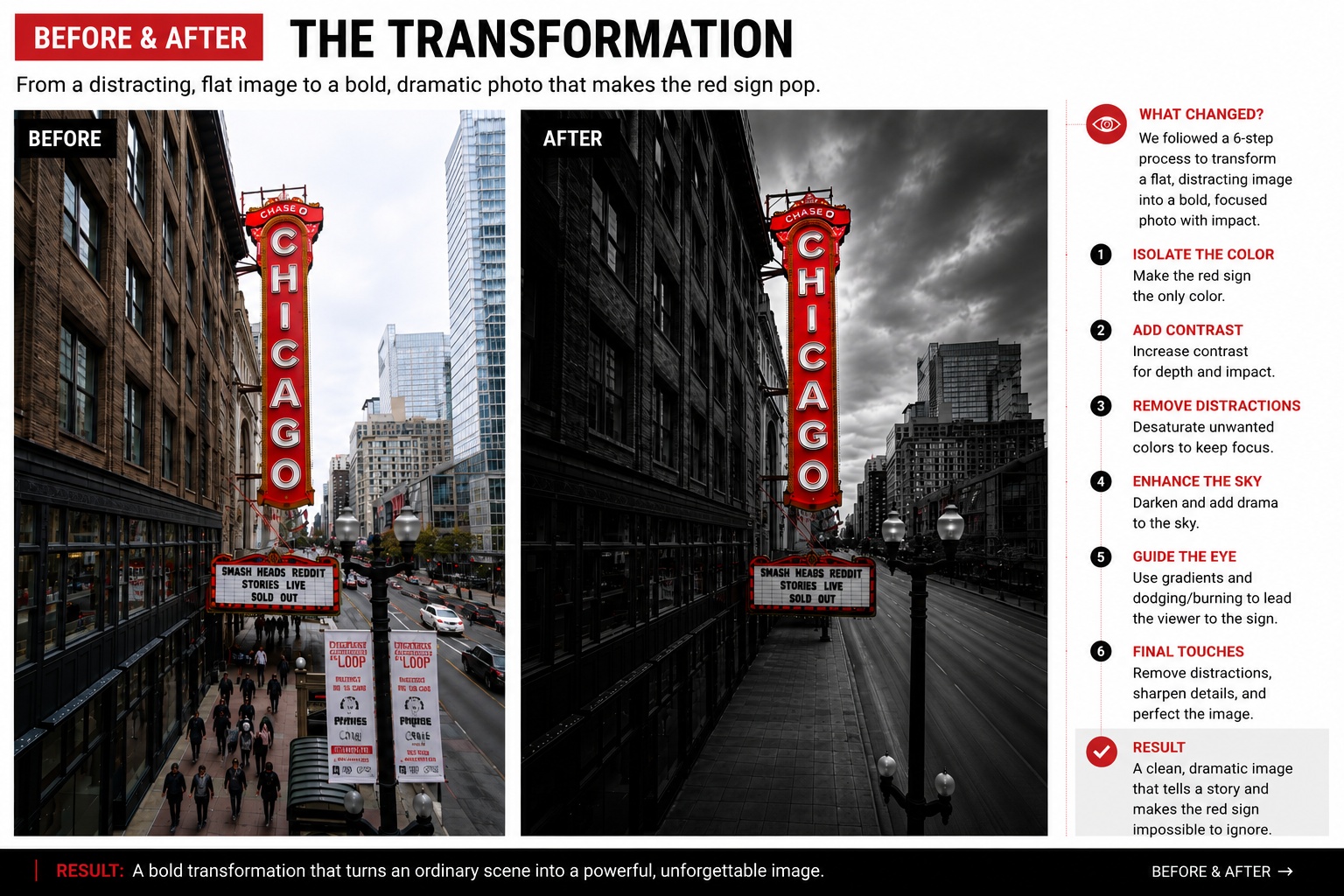
Before and After: The Power of Selective Color
The biggest transformation comes from simplification. By combining selective color, strong contrast, local adjustments, and AI masking, you can turn an ordinary photo into an image that immediately captures attention.
Ready to get 1 on 1 support to master your tools and take photos that have that WOW factor? Apply to become a certified Master of Photography here.
Final Thoughts
Selective black and white photography is more than a creative effect — it's a powerful storytelling technique that helps viewers focus on what matters most. Next time you're editing in Lightroom, try isolating a single color and removing everything that distracts from it. Sometimes, one color is all you need.
New to Lightroom? Start with my 10 Lightroom Secrets, and once your shot is set, learn how to dodge and burn in Lightroom to finish it like a pro.
Frequently Asked Questions
How do you make a photo black and white except one color in Lightroom?
In the Color Mixer (HSL) panel, drop every color's saturation to −100 except the one you want to keep. For any leftover patches, add a Masking brush and lower its saturation.
What is the selective color effect called?
It's known as selective color, color splash, or color pop — a black-and-white image with a single color left in.
Can you do selective color in Lightroom mobile?
Yes. The free Lightroom mobile app has the same Color Mix panel and masking tools, so you can do the whole effect on your phone.
What photos work best for selective color?
Photos with one bold, isolated color — a red umbrella, a yellow coat, a single flower. Scenes where color is spread everywhere are much harder to pull off.
Want more? Explore 10 Lightroom secrets to instantly improve your photos and the best photography locations in Paris. Love a shot? You can license my prints here.
Get my FREE Lightroom preset here: https://bit.ly/AIPresets
Serge — Photoserge | Coaching photographers who are serious about getting to the next level.
